Download and Setup PyCharm for Learning
Step 1
Download and install Python to your computer. Head over to the official Python website to download the latest version of Python for your computer system. Then complete the installation.
https://www.python.org/downloads
Step 2
Download the Free Community Edition of PyCharm using the link below:
https://www.jetbrains.com/edu-products/download/#section=pycharm-edu
IMPORTANT: If you already have PyCharm, make sure you update to the latest version of PyCharm .
Step 3
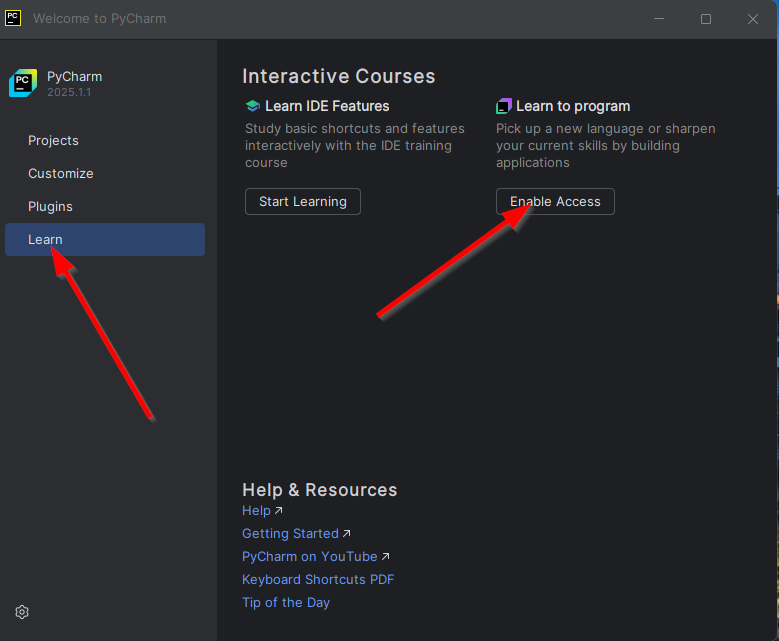
Once PyCharm installs successfully, you should see the welcome screen. Click on the Learn tab and click “Enable Access”.
Step 4
Once all the required plugins install successfully. Close and Restart PyCharm.
OCI
Step 1
Download the OCI cli .msi package on Github below the download link and install
Link for download OCI cli for windows: https://github.com/oracle/oci-cli/releases
Step 2
OpenSSL – create private/public keys
openssl genrsa -out MojPrivatniKljuc.pem 2048
openssl rsa -pubout -in MojPrivatniKljuc.pem -out MojJavniKljuc.pem
Step 3
Log to oci, add public key from step1, save data
Step 4
pip install oci
oci –version
oci setup config -> generate config
config
[DEFAULT]
user=get from cloud
fingerprint=generated by config
key_file=path to private key
tenancy=get from cloud
region=get from cloud
test -> oci iam availability-domain list | grep name
Links:
How to install and configure the Oracle Cloud Command Line Interface (OCI-CLI) https://www.youtube.com/watch?v=crnj1iurlnY&t=312s
https://learncodeshare.net/2020/03/06/install-and-configure-the-oracle-cloud-command-line-interface/