Fedora 18 introduced firewalld as a replacement for the previous iptables service. Since RHEL7 and Oracle Linux 7 are based on Fedora 19, the switch from iptables service to firewalld is now part of the Enterprise Linux distributions. This article is a rework of the previous Linux Firewall article, bringing it up to date.
You need to distinguish between the iptables service and the iptables command. Although firewalld is a replacement for the firewall management provided by iptables service, it still uses the iptables command for dynamic communication with the kernel packet filter (netfilter). So it is only the iptables service that is replaced, not the iptables command. That can be a confusing distinction at first.
- Reverting to the iptables Service
- Installation
- firewall-config
- firewall-cmd
- Backups and Transfers of Firewall Configuration
- Quick Database Setup
Related articles.
Reverting to the iptables Service
If you are not ready to make the break to firewalld, you can still use the iptables service by issuing the following commands.
# systemctl stop firewalld
# systemctl disable firewalld

# iptables-service

# touch /etc/sysconfig/iptables
# systemctl start iptables
# systemctl enable iptables

# touch /etc/sysconfig/ip6tables
# systemctl start ip6tables
# systemctl enable ip6table
From this point forward, firewall administration will be similar to that described here.
The rest of this article assumes you are going to use firewalld.
Installation
Most installations will include the firewall functionality, but if you need to manually install it, do the following.
# yum install firewalld firewall-config
Make sure the service is started and will auto-start on reboot.
# systemctl start firewalld.service
# systemctl enable firewalld.service
You can check the current status of the service using the following command.
# systemctl status firewalld
firewalld.service - firewalld - dynamic firewall daemon
   Loaded: loaded (/usr/lib/systemd/system/firewalld.service; enabled)
   Active: active (running) since Sun 2014-04-20 14:06:46 BST; 30s ago
 Main PID: 13246 (firewalld)
   CGroup: /system.slice/firewalld.service
           └─13246 /usr/bin/python /usr/sbin/firewalld --nofork --nopid

Apr 20 14:06:44 localhost.localdomain systemd[1]: Starting firewalld - dynamic firewall daemon...
Apr 20 14:06:46 localhost.localdomain systemd[1]: Started firewalld - dynamic firewall daemon.
#
To disable the firewall, run the following commands.
# systemctl stop firewalld.service
# systemctl disable firewalld.service
firewall-config
The GUI screen to control the firewall is available from the menu.
- Fedora : System > Administration > Firewall
- RHEL7/OL7 : Applications > Sundry > Firewall
Alternatively, if can be started from the command line using the firewall-config command. If it is not already present, it can be installed using the following command.
# yum install firewall-config
Posted from: https://oracle-base.com/articles/linux/linux-firewall-firewalld
How to restart Network Interface / Network Adapter on Linux & Windows Cloud Servers| Rocky Linux
- Use the following command to restart the server networking service.
# nmcli networking off # nmcli networking on or # systemctl restart NetworkManager

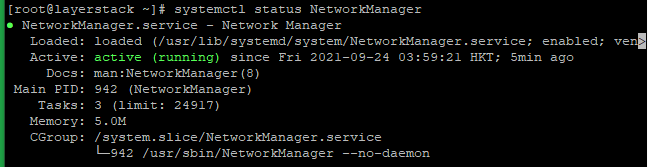
- Either of the below commands can be executed to check the status of the networking service.
# nmcli -o or # systemctl status NetworkManager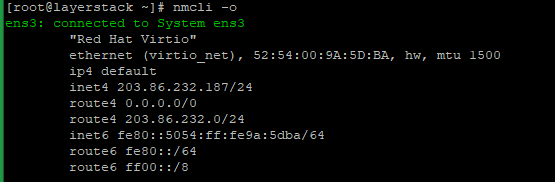
- Use the following command to restart the server networking service.
# nmcli networking off # nmcli networking on or # systemctl restart NetworkManager - Either of the below commands can be executed to check the status of the networking service.
# nmcli -o or # systemctl status NetworkManager